
Verifying the Auto-Installation
The Sentinel Pulse package automatically handles app creation and installation, allowing you to monitor the progress. This section describes how to verify the auto-installation.
1.In the top-right corner, click the Setup  icon, and then select Setup.
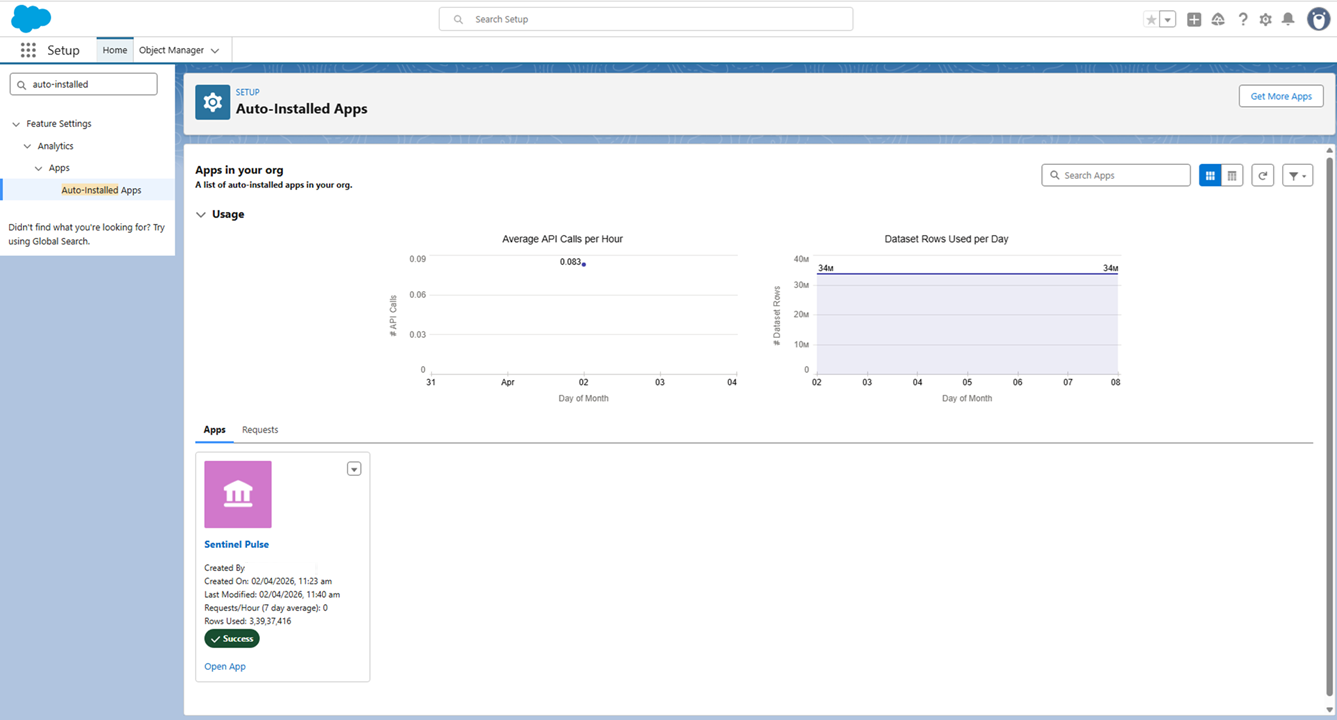
2.In the Quick Find box, enter Auto-Installed Apps.
3.On this page, look for Sentinel Pulse among all the auto-installed apps in your org. If the auto-installation is in progress, it might take a few moments. Do not proceed to the next steps until the status changes to Success.
If the Installation Stays "In Progress"
1.Wait at least 15 to 20 minutes. Some installations take time depending on the size of the organization and the data volume.
2.On the Auto-Installed Apps page, click the refresh button to check for the updated status.
3.If the status does not change after 20 minutes, click Clean Stale Requests to clear stuck requests.
4.Retry the installation.
If the Status Shows "Failed"
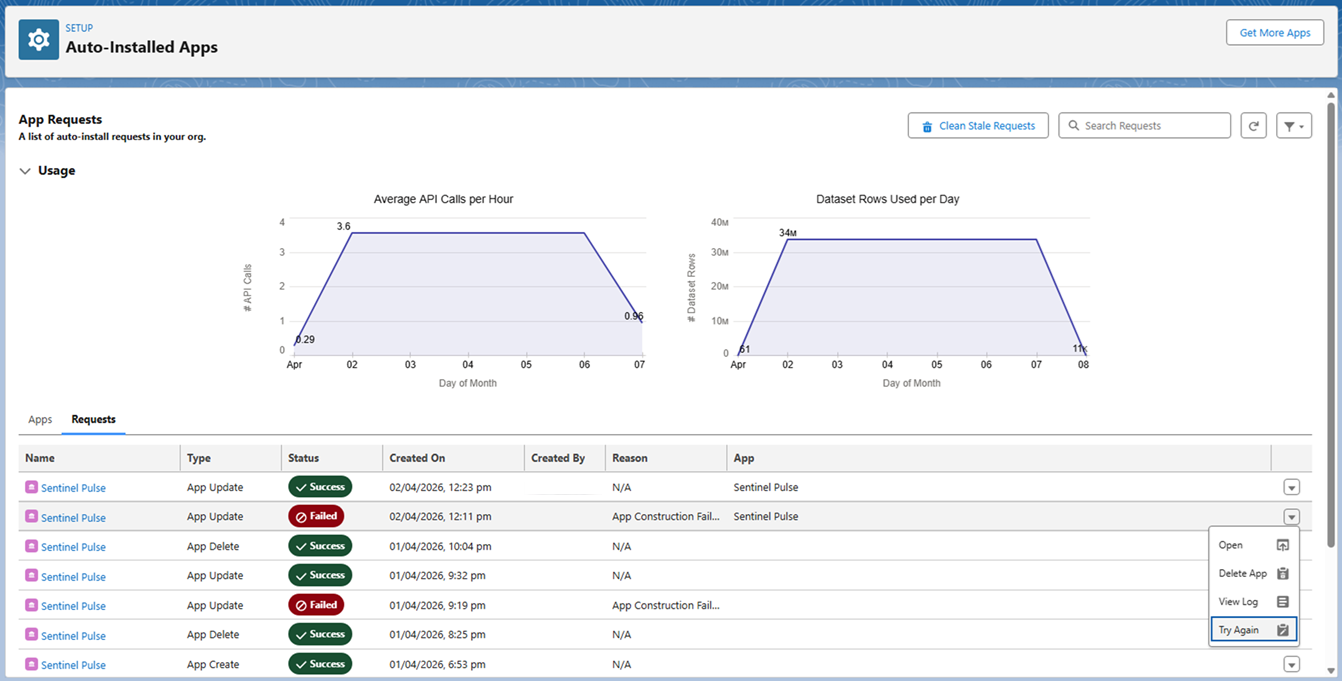
1.On the Requests tab, locate the failed Sentinel Pulse request.
2.Click the drop-down arrow on the right side of the failed request row.
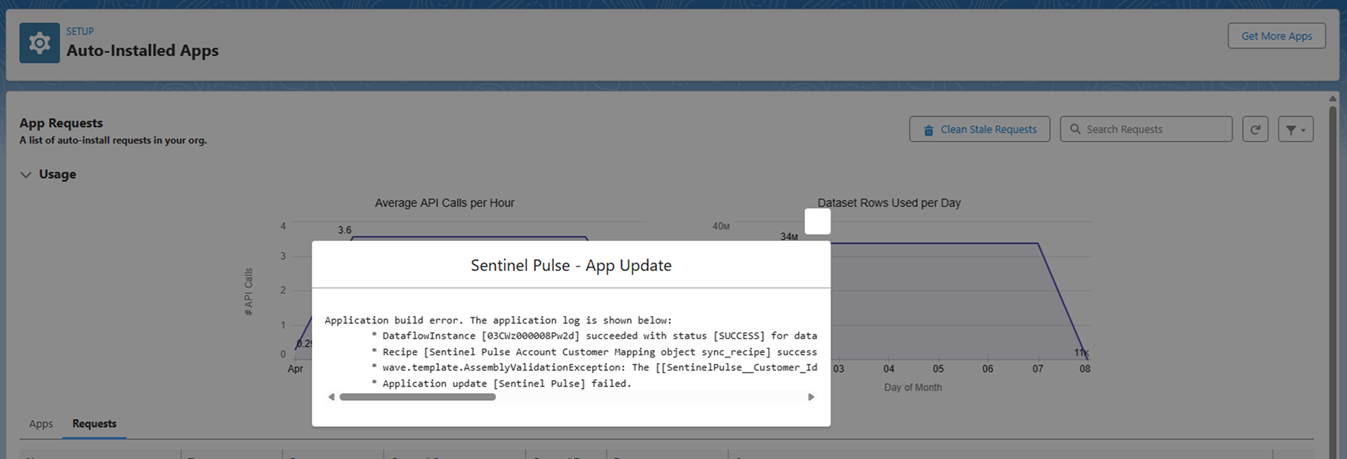
3.Select View Log to view the error details. Review the application log for the root cause. Common errors include the following:
|
|
•App Construction Failure: For example, wave.template.AssemblyValidationException indicates a template or dataset configuration issue.
•Application reset [Sentinel Pulse] failed: Indicates that the app could not reset during the update process.
4.From the drop-down list, click Try Again to retry the installation.
5.If the retry fails, note the error message from the log and contact Thales Customer Support.